
Generating a duplicate certificate
Screenshots show the Dutch interface. Menu names and buttons appear here as they appear on screen, in Dutch.
Once a certificate has been printed, you create a duplicate of it. Creating the certificate itself is covered in creating a certificate of care.
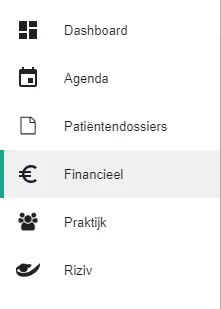
Click Financieel (Financial) in the left-hand menu.
Click the
 icon of a certificate that has already been validated.
The certificate opens in a pop-up window. A yellow box carries the message "Dit getuigschrift is al geprint. Nog eens printen zal resulteren in een duplicaat", meaning the certificate has been printed before and printing it again produces a duplicate.
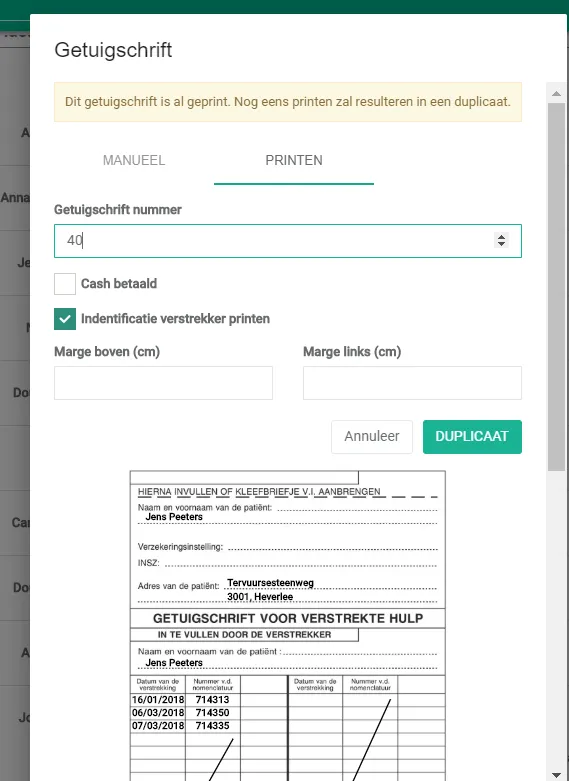
Halingo fills in the duplicate’s number automatically. You can edit the details before you click Duplicate.
Click the Duplicaat (Duplicate) button.

The invoice details now show +1 next to the certificate number.

Click it to see every certificate issued for that invoice.

Was this article helpful?