
Change your email address
Screenshots show the Dutch interface. Menu names and buttons appear here as they appear on screen, in Dutch.
You change the email address on your account from your profile. The new address only works once you have confirmed it.
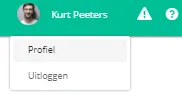
- Click your name at the top right of the navigation bar.

- Click profiel (profile).
- Under login details, click the wijzig e-mailadres (change email address) button.
- Enter your nieuw e-mailadres (new email address).

- Enter your wachtwoord (password).

- Click the opslaan (save) button.
You now see the message below. Halingo has sent an email to the new address. You can only log in with the new address after you have confirmed it.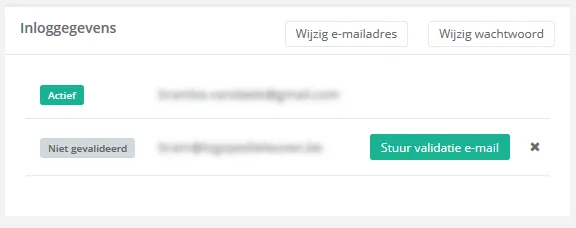
- Open that email and click the e-mailadres verifiëren (verify email address) button, or follow the link in the email.
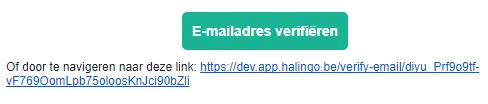
Cannot find the email? Check your spam folder. You can also send a new validation email with the stuur validatie-email (send validation email) button.
Was this article helpful?
One more question?Open a ticket and we will look at it with you.
Open a ticket